How to Autofill Job Applications: 3 Real Options
Chrome's saved details, the ATS's own Autofill with Resume button, or a browser extension. The steps for each, where each one stops, and what to check before you submit.
There are three ways to autofill a job application, and you may end up using more than one on the same form. This guide covers how to run each of them and what you’ll still have to do by hand. If you’re deciding which extension to install, I compared them in the best job application autofill extensions. If you’re wondering whether a tool should submit for you, that question is in autofill vs auto-apply.
Disclosure: I build SealApply, which has an autofill extension. Its steps are at the end, and everything before them applies whatever you use.
How do you autofill a job application?
Choose the method that matches how much of the form you want filled, run it, then fill the gaps and review. Here’s how the three options differ.
| Method | Fills from | Usually stops at |
|---|---|---|
| Chrome autofill | Your saved contact info | Work history and screening questions |
| Autofill with Resume | The file you upload to the ATS | Whatever the parser misreads or doesn’t support |
| Browser extension | A profile you saved in the tool | Questions with no matching saved answer |
Option 1: Chrome’s built-in autofill
You already have this one. Google says Chrome can fill forms with saved info like your name, passwords, addresses and payment details, and it can use the name and email from your Google Account.
- In Chrome, open the three-dot menu and select Passwords and autofill.
- Select contact info, then Add, and enter your details.
- Check that Save and fill is on for that category.
- On the application, click into a field such as your name and select the suggestion Chrome offers.
Exact menu names can shift between Chrome versions, and Google’s Chrome autofill help page has the current path.
Where it fails
Google lists the autofill categories as passwords, payments, contact info, identity docs and travel. Job history isn’t among them, so employers, titles, dates, education and screening questions are left to you.
It also depends on how the form was built. Browsers rely on signals in the page’s code, such as the autocomplete and name attributes, and web.dev tells developers to use standard elements like <select> over custom ones so autofill stays available. Google also has a feature it calls smarter form understanding for complex forms, and its help page says not all websites are compatible. Enhanced autofill with Gemini is limited to opted-in US users 18 or older, and it draws on Gmail data such as flights and orders.
Option 2: the ATS’s own Autofill with Resume
Some application forms offer to fill themselves from your resume. This is the ATS parsing your file, and it behaves differently depending on the system and how the employer set it up.
Steps on Workday
Workday is where most people meet this button. These steps follow the State of Oregon’s applicant guide, and other employers’ screens may differ a little.
- Click Apply and choose Autofill with Resume. The other options are Apply Manually and Use My Last Application.
- Sign in or create an account for that employer’s site.
- Upload your resume or CV.
- On My Information, check what came through and fill the remaining fields. A red asterisk marks the required ones.
- On My Experience, review each pre-populated entry for accuracy, and use Add for anything missing.
- Answer the Application Questions, which vary by position.
- Use the review screen, then submit.
How other systems handle it
Ashby has an optional “Autofill from resume” field that employers can turn on. Its docs list the resume, name, email, location, education history and social links as supported, and say this doesn’t guarantee every listed field gets a value. Work history isn’t on that list.
Greenhouse’s Quick Apply works from a saved profile. When an employer enables it, candidates see an Autofill my application button, sign in to a free MyGreenhouse account, and fill the form from what they saved there, including the employer’s questions. Lever’s help docs mention auto-populating Current Location from an uploaded resume. I couldn’t open that page in full, so check the form in front of you for anything beyond that.
Where it fails
Parsing is a guess about which text belongs in which field. Washington and Lee’s instructions say Autofill with Resume fills “parts” of the application, and Penn State tells applicants to review and edit before submission. Layout is a common cause of bad results, which I covered in Workday resume parsing errors.
Workday’s admin guide adds two limits you can’t see from the applicant side. Languages and Skills aren’t auto-filled, and employers can hide resume parsing from external candidates, so the button may not appear at all. The parser can also go down: a June 2025 notice on workday.nevada.edu reported that it wasn’t filling fields on external career sites, and applicants had to enter their details by hand.
Option 3: a browser extension
An extension fills from a profile you control, so it can cover more of the form than Chrome and doesn’t rely on the ATS reading your file. The general steps are the same for most of them:
- Find it on the Chrome Web Store and select Add to Chrome. Read any permissions it asks for. You can limit an extension’s site access later from its Details page.
- Build your profile: resume, work history, education, links and any standard answers you want reused.
- Open the application on the employer’s site.
- Start the fill. On a multi-page form, you may need to run it on each page.
- Answer what it skipped, review the form and submit it yourself.
Where it fails
Coverage varies by tool and by form, so test one on a real application before relying on it. Settings matter too. Simplify’s help docs, for example, say you start autofill on each page unless continuous autofill is on, and that AI answers to unique questions are a Simplify+ setting you can switch off. Tools also differ on whether they generate answers or only reuse yours. I’d check that before anything else, for the reasons in autofill vs auto-apply.
The three spots that trip up every method
Custom questions
Employers write these themselves, and Oregon’s guide notes that they vary by position. “Why this team?” or “Which shift can you work?” may have no saved answer, and an empty field is the safer result there. Keep a note of your standard answers so you can paste them in, and write the job-specific ones fresh.
Dropdowns
Your saved value has to match one of the options on that form, and the options change between employers. “Canada” and “CA” can be the same answer to you and different entries in a list, and degree types are worded many ways. Custom-built dropdowns add another problem, since they may not behave like the standard element browsers expect. Open each one that matters and confirm the selection.
Repeating work history
Work history is usually a block you add once per job, and each block has its own title, employer, dates and description. That gives a parser or an extension more ways to go wrong: a job can be dropped, split in two, or get another job’s dates. Count the entries against your resume, then check each one. On Workday, the Add button creates a new entry for anything missing.
Pre-submit review checklist
Do this whichever method you used. Some employers don’t allow changes later: Washington and Lee says “you cannot change your application after submission.” North Carolina’s state FAQ also says information left out of the application isn’t creditable as qualifying experience, even if it’s on your attached resume, so a blank work history entry can cost you with that employer. If you spot a mistake too late, see how to edit or withdraw a job application.
- Your name, email and phone are correct, and the email is one you check.
- The attached resume is the version you meant for this job.
- The number of jobs matches your resume, in the right order.
- Titles, employers and dates sit in the right entries, including your current role.
- Education, degree type and graduation date are right.
- Work authorization and sponsorship answers fit the country of this job.
- Salary has the right currency and is hourly or annual as the field asks.
- Every required field is filled. Look for error messages on each page.
- Skills and languages are there, if the form asks for them.
- Each free-text answer is true and sounds like you.
After submitting, check for follow-up steps. Oregon’s guide says additional tasks can appear right after you submit and must be finished for the application to be complete.
How to autofill a job application with SealApply
SealApply’s extension is free and fills almost any application form, including Workday, Greenhouse, Lever and Ashby. It types your details in field by field the way you would.
- Install it. Add the SealApply Extension from the Chrome Web Store and connect it to your dashboard.
- Add your resume. Upload a PDF or DOCX, review what was pulled out of it, and add answers only you can give, like expected salary and work authorization. You can also tailor a resume for the job so that version gets attached.
- Open the form on the employer’s careers site and click Seal it.
- Review it. The widget shows how many required fields it filled and lists the ones it left for you. Answer those and run the checklist above.
- Click Submit yourself. SealApply never submits for you.
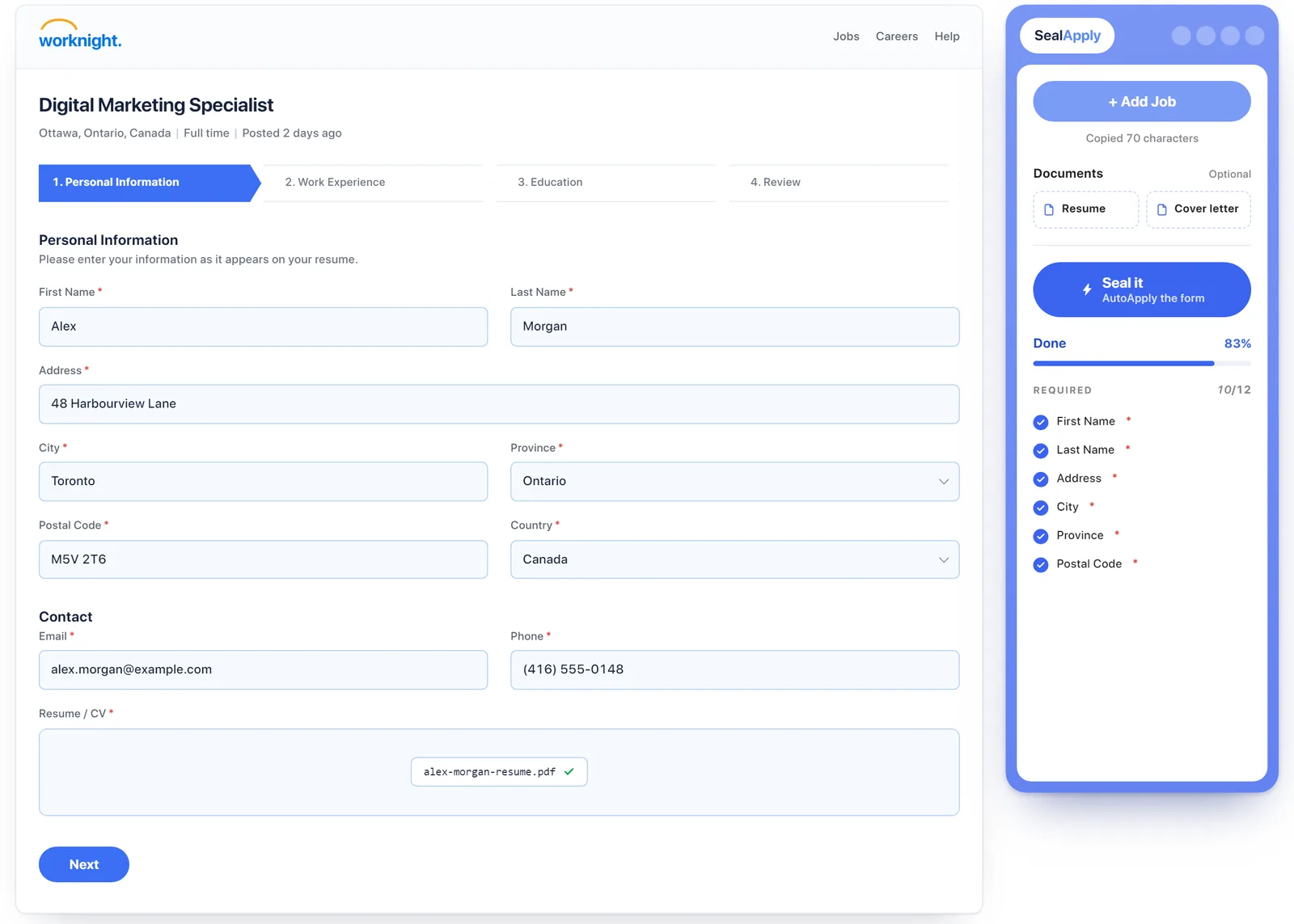
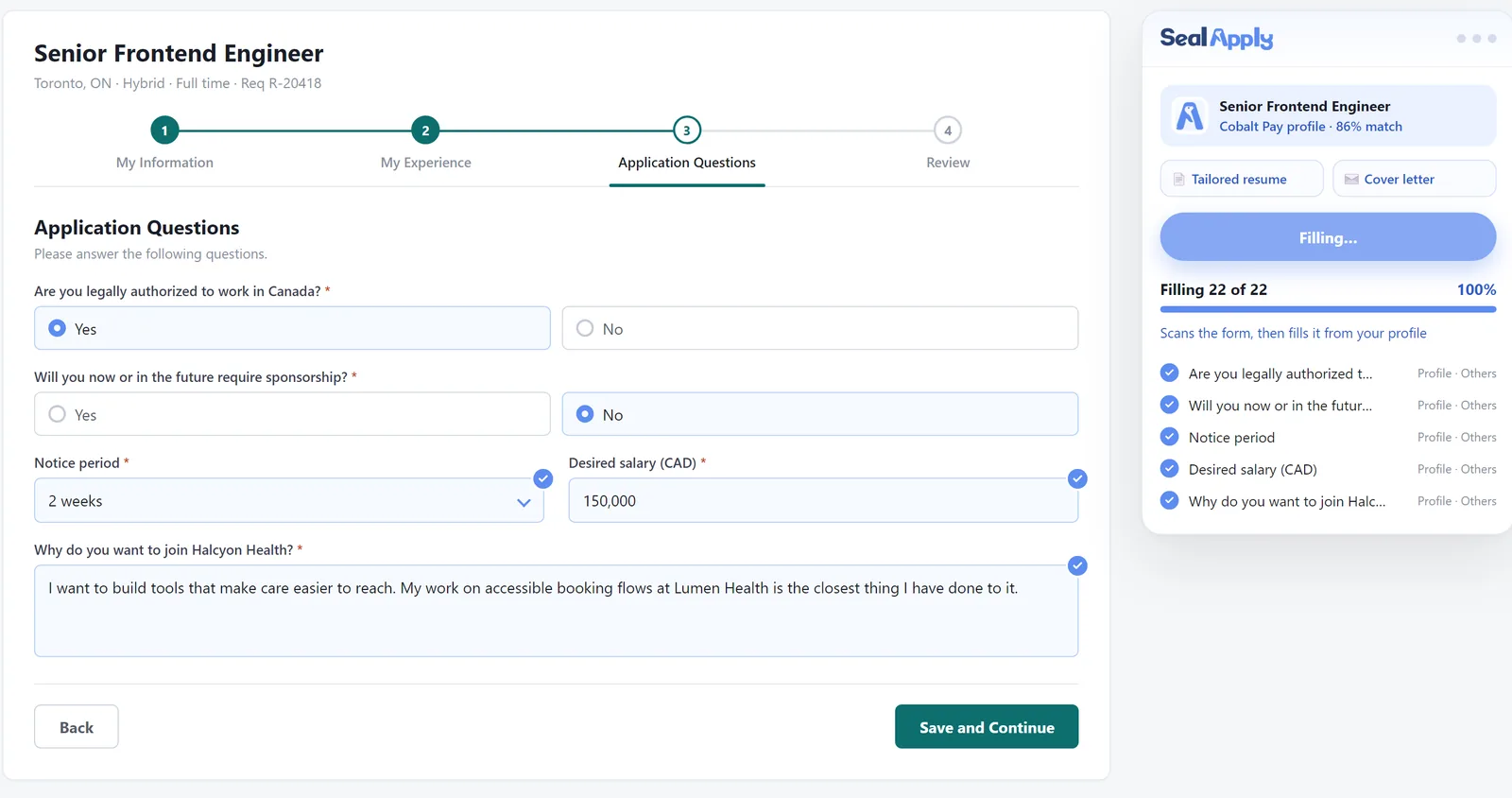
Each system has its own quirks, covered in the guides for Workday, Greenhouse, Lever and Ashby.
Free tools: try this on your own job
Score jobs against your resume
Tailor your resume to a job
Build a new resume with AI
Write a cover letter in the app
Want a letter right here, with no sign-in? Use the free cover letter generator. All generators
Frequently asked questions
How do I autofill a job application?
Pick one of three methods: Chrome's saved details for contact fields, the form's own Autofill with Resume option if it has one, or a browser extension that fills from your profile. Then fill in whatever was left empty, read each page and press Submit yourself.
Can Chrome autofill job applications?
Chrome can fill the contact part of a job application from your saved info. Its autofill categories cover things like contact info, payments and passwords, and Google's help page doesn't list job history, so work experience and screening questions stay with you.
What does Autofill with Resume do on Workday?
It reads the resume you upload and puts what it finds into the application's fields. Employer guides describe it as filling parts of the application, and Oregon's guide tells applicants to review the experience section for accuracy. Workday's admin guide says Languages and Skills aren't auto-filled.
Is there a free extension to autofill job applications?
Yes, free options exist, and SealApply's extension is free to install and use for autofill. Some tools keep AI answers or other features on paid plans, so check what the free version includes. The comparison of autofill extensions covers the main tools.
Why didn't autofill fill my custom questions?
Custom questions are written by each employer, so there is often no saved answer that clearly matches them. Good tools leave those fields empty for you. Answer them by hand, or save your standard answers in the tool's profile so it can reuse them.
Will autofill submit the application for me?
Autofill tools generally stop before the final step and leave Submit to you. Greenhouse says candidates review and edit their answers before submitting, Simplify says you click the final button, and SealApply never submits for you. Bulk auto-apply bots are a separate category.
See how SealApply works
More from the blog
Is it safe to use auto-apply bots? Will LinkedIn ban you?
What LinkedIn's own rules say about automation, what employers see on their side, and how to save time without handing your job search to a bot.
Jobright vs Simplify (and a Free Third Option)
Both are job search platforms with a free autofill extension. Here's how they differ on finding jobs, tailoring resumes and filling applications, checked against their own pages.
Simplify vs Teal for Job Applications
Simplify fills in applications and feeds you jobs; Teal builds resumes and organises your search. What each does free, what costs extra, and when to use which.
Jobscan vs Teal: Which Resume Tool Is Worth It?
Jobscan is a resume scanner that grew a toolkit; Teal is a resume builder and job tracker that grew AI. Here's what each one's free plan and paid plan actually include.
Try it on your next application
SealApply tailors your resume to the job, checks it against the ATS and fills in the form for you to review. Free, and your resume stays in your browser.
See what SealApply does